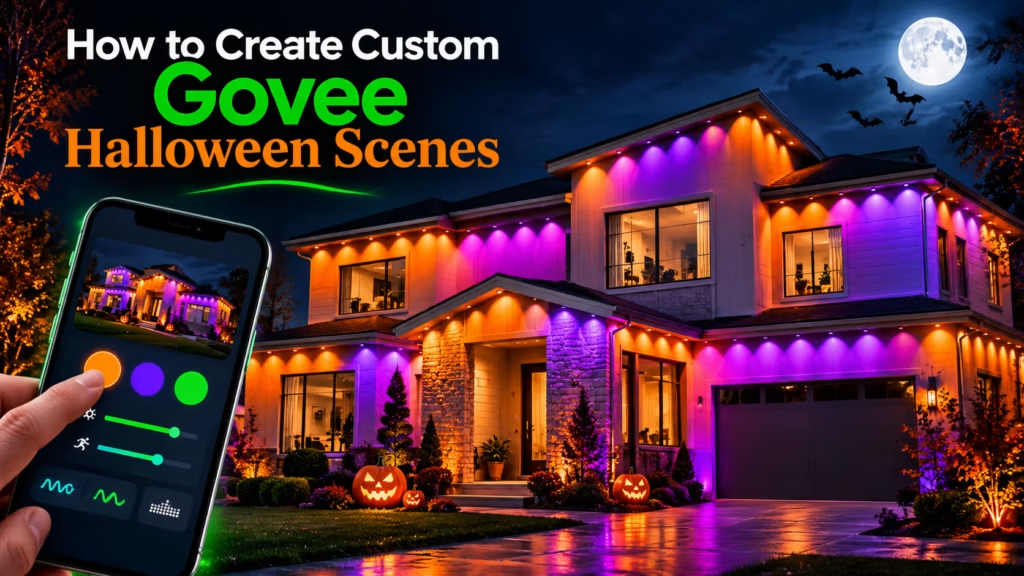

A convincing Govee Halloween Scene starts with a visual plan, not random colors. Decide what the house should communicate, assign colors to architectural features, then control brightness, movement, and transitions.
An orange roofline with slow purple accents feels mysterious; a fast orange-and-green chase suits a party. Presets offer existing looks; editable effects allow adjustments; custom scenes start with your own idea.
Govee Home has built-in scenes and DIY features for compatible devices. The available control features differ depending on the device, firmware, and effect mode.
Built-in Govee Halloween effects are not necessarily editable. For fixed animations, explore supported DIY alternatives.
Use one dominant color, one supporting color, and an optional accent before touching animation controls.
Orange and purple: Orange defines Halloween roofline lights; purple brings contrast to a porch or gable. At full brightness, they can blur together. Dim the stronger zone.
Purple and green: Purple establishes a supernatural mood; green works best at a doorway or single peak. Too much green overwhelms the design.
Red and orange: This warmer, dramatic pairing suits a haunted entrance, not necessarily every roofline section.
Mostly orange: A steady pumpkin outline with occasional accent changes often looks cleaner than continuous multicolor cycling along long eaves.

Create a sequence: steady orange first, then purple highlights second, transitions next, and speed finally, but only at the focal point. Assignments of colors will vary depending on the device’s supported parts and controls, such as Govee Permanent Outdoor Lights and Govee RGBIC lights.
Static patterns emphasize architecture; fades build suspense; chases lead the eye; flashes create sudden drama. Music-reactive effects respond to sound on compatible products. Choose restrained movement for Halloween lighting and sharper motion for parties. Capabilities vary.
There is a tab on the lights individual control page next to “Music” once clicked it shows you DIYs that others have shared in video format, at the bottom of the video you can click “Apply” and it sets your lights to what they’ve set and saves it to your DIY page where you can further edit and make it you your own liking.
It’s a great way to experiment with unique Halloween lighting combinations without building every effect from scratch. You can also use these shared designs as a starting point to create your own spooky lighting scenes.

Speed: Begin moderately. If the house looks restless rather than haunted, slow the effect where possible; reserve quicker movement for parties.
Brightness: Judge colors from the driveway. If purple vanishes beside orange, dim orange first. Too much production can blur differences and overpower the roof line.
Transitions: Supported fades let colors emerge gradually; abrupt changes create a theatrical jolt. When a preset offers neither option, choose another supported effect.
Flicker: Continuous flickers will tire and distract the observer. Use accents and not distracting flickers that may irritate sensitive observers.
Keep changing only one element and doing the street view test in order to find out what actually worked.

Too many competing colors? Return to one dominant shade and one accent. Maximum brightness? Dim the strongest zone to recover contrast. Rapid animation in a haunted display? Switch to slower motion. Clashing adjacent sections? Repeat their palette.
Do not assume identical DIY controls across products, judge results only by a phone preview, or confuse a fixed preset with an editable scene. Check from the street, determine compatibility before putting together, and reconfigure saved settings to account for any surprises.
Colors differ from the preview: Streetlights, distance, LED output, and mounting alter perception. Rebalance the actual display after dark.
One device looks out of step: Check its chosen mode, brightness, connection, grouping support, and model compatibility. Matching colors may be possible without matching transitions.
Animation is too quick: Slow down animation if possible; else use a more relaxed type of animation or a DIY animation that is compatible.
Cannot save or open scene: Make sure your mode allows saving; save, connect app/device, and try again.
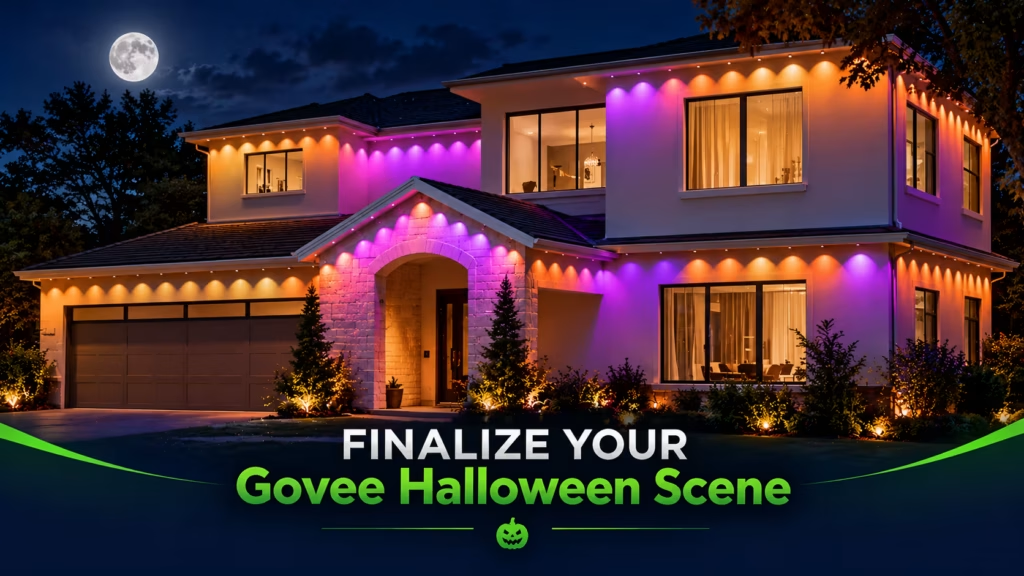
Before relying on the finished display:
A scene that looks attractive on a phone can appear disconnected across an entire roofline. Test the actual installation and correct the settings that look wrong from the viewer’s perspective.
A well-planned Halloween display also depends on how the lights are installed. If you’re considering a permanent setup instead of temporary decorations, understanding the Govee permanent outdoor lights installation cost can help you plan ahead.
Some devices have Music Mode, which reacts to sound. This is not the same as every DIY scene so check if your model can mix music reactions with your colors.
Bright LEDs can make shadows disappear and take attention away from decorations. Lower the brightness, use colors at once and check the result from the sidewalk after sunset.
Most Govee devices can be set on timers or schedules, but, which specific saved DIY effect you can automate will depend on the particular model and app. Preview the full schedule before Halloween.
Access your device's DIY editor to open your file, complete the design, then hit the save option. Name the effect for easy access on Halloween night.
Share your thoughts below and let us know how we can help with your lighting project.
Get fast, reliable help for your lighting project with clean installation, secure setup, and expert support from start to finish.
Book your Govee light installation by November 26, 2026
Limited-time offer for new bookings. BOOK & SAVE 10% Get Quote : (469) 809 6227Offer applies to labor only.